 |
|
Key mapping editor popup dialogFeature available in Premium, Personal and Lite editions (not available in Player edition). The Key mapping dialog gives you a complete control over a key’s mapping. With it you can precisely specify the aspects that could not be defined unambiguously with drag-drop. Mapping editor dialog can be opened in several ways:
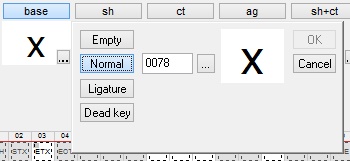
The dialog that opens up enables “fine-tuning” of a mapping through the following options:
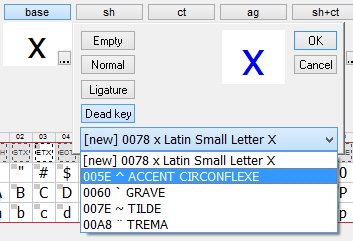
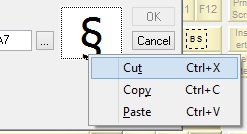
When defining a dead key mapping, note that you are not limited to the choice of pre-existing dead characters only. When switching to the Dead key mapping, if the previously active Normal mapping does not exist as a dead character, it will appear in the list with the designation [new] next to it. If you choose this entry, the new dead character will be created "on the fly", without having to take your attention away from the High level editor. Entering a mapping via keyboardThe desired mapped character can be also edited using the keyboard. This is handy if you want to assign a standard letter supported by your currently active keyboard layout - in that case, entry via keyboard can be easier than providing the numeric Unicode codepoint or using drag/drop. When the Dead key button is active, the character entered via the keyboard becomes a dead mapping, offering to create a [new] dead character if necessary. Clipboard operationsThe dialog supports standard Cut/Copy/Paste clipboard operations. Thy are available through the right-click popup menu on the static widget displaying the current mapping's preview:
When the widget has keyboard focus, clipboard operations are also available via the standard Ctrl+X/C/V shortcuts. Automatic mapping of upper/lower case equivlaentsIf Auto-map upper-lower case setting is enabled, whenever you map a "Normal" lower-case letter to a non-Shift position, KbdEdit will automatically map its upper-case equivalent to the equivalent Shift position, and vice-versa. E.g. if you assign 'è' to AltGr+VK_KEY_E, upper-case equivalent 'È' will be automatically mapped to Shift+AltGr+VK_KEY_E (provided no characters are already mapped to it - see also Overwrite non-empty mappings). Back to High-level editor |
|
Copyright © KbdSoft 2007-2026 |