 |
|
Locale SearchThe "Locale Search" popup dialog enables searching for a locale (basically, a
language) to associate a custom keyboard layout with. It is accessible via the
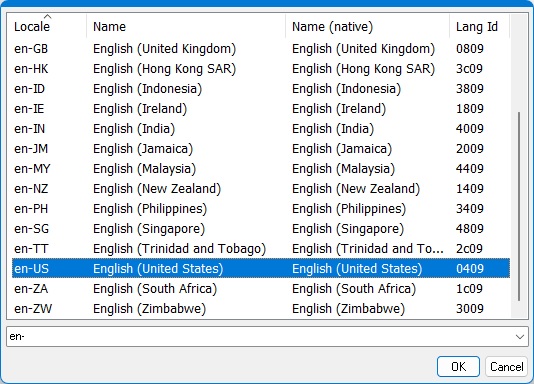
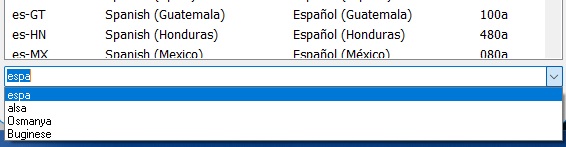
When the dialog is launched, the search box may be pre-filled with the textual name of a locale. As the search box is edited, the list is dynamically updated to show all matching entries. The locale can be searched for by either its descriptive name, a numeric locale id, or a textual locale name. E.g. the same "US English" locale shown above can be located by typing either English (United States), en-US or 0409. Search historyThe search edit box maintains a history of recently used search terms, which can be recalled through its drop-down list:
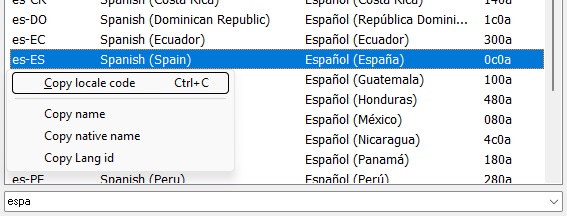
Copying from the result listThe right-click popup menu provides options to copy any of the four attributes of a locale to the clipboard:
|
|
Copyright © KbdSoft 2007-2026 |
 (magnifier glass) button from: