[Home] [Purchase] [Download] [Manual] [Acknowledgements] [Sitemap] [Release Notes] [FAQ]

Up ] [ Swapping Caps Lock and Ctrl ] Disabling the WINDOWS key ] Mapping multimedia/web keys to numeric keypad ] Assigning characters to multimedia/web keys ] Multi-lingual English/French keyboard ] Multi-alphabet Serbian Cyrillic/Latin keyboard ] Tri-lingual Serbian Cyrillic / Latin / Greek keyboard ] Replacing AltGR with Kana ] French improved keyboard ] Multi-lingual Russian phonetic / US English keyboard ] Multi-lingual Bulgarian phonetic / US English keyboard ] Colemak keyboard ] Multi-lingual Hindi / US English keyboard ] Multi-lingual Hebrew / US English keyboard ]

Example - Swapping Caps Lock and Ctrl

Layout file: US English (swapped Caps and Ctrl).zip

You can use the Demo version to test this example, Player edition to deploy it in its original form, or Full or Lite edition to deploy a modified version.

Users coming from the Unix world might find the default keyboard layout very confusing - they are used to Caps Lock mapped to the position of left Control key and vice versa. This example shows how to create such a layout in Windows in few very easy steps.

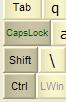
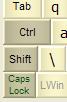
KbdEdit Caps Lock Ctrl normal KbdEdit Caps Lock Ctrl swapped
Windows standard position of Caps Lock and Control keys Customized position after applying the changes from this example
  1. Switch to the low-level editor.
  2. Move mouse to the Caps lock key, drag it (i.e. press the left button and start moving the mouse without releasing), and drop it onto the Left Control key.
  3. It is important that you don't press the Control key on the physical keyboard during the drag&drop operation. This way you achieve the desired "swap" operation between the source and the target (see Editing Virtual Key mappings for details).

Back to examples list

Manual index


Copyright © KbdSoft 2007-2008